New feature
Hand Tasks Between Teams: Product → Developer → QA Flows
Set up teams and the order they work in. A task moves from Product to Developer to QA and back for sign-off, with send-backs, a person or team queue on every hand-off, and a full history.
· 6 min read · By Scriptimiz Insight LLP
Most work passes through more than one team. Product writes the requirement, developers build it, QA tests it, and Product signs it off. Until now a task only had a status, so it wasn't clear which team was holding it or who should pick it up next. Team flows fix that: you decide the teams, the order they work in, and who can hand a task to whom.
1. Create your teams
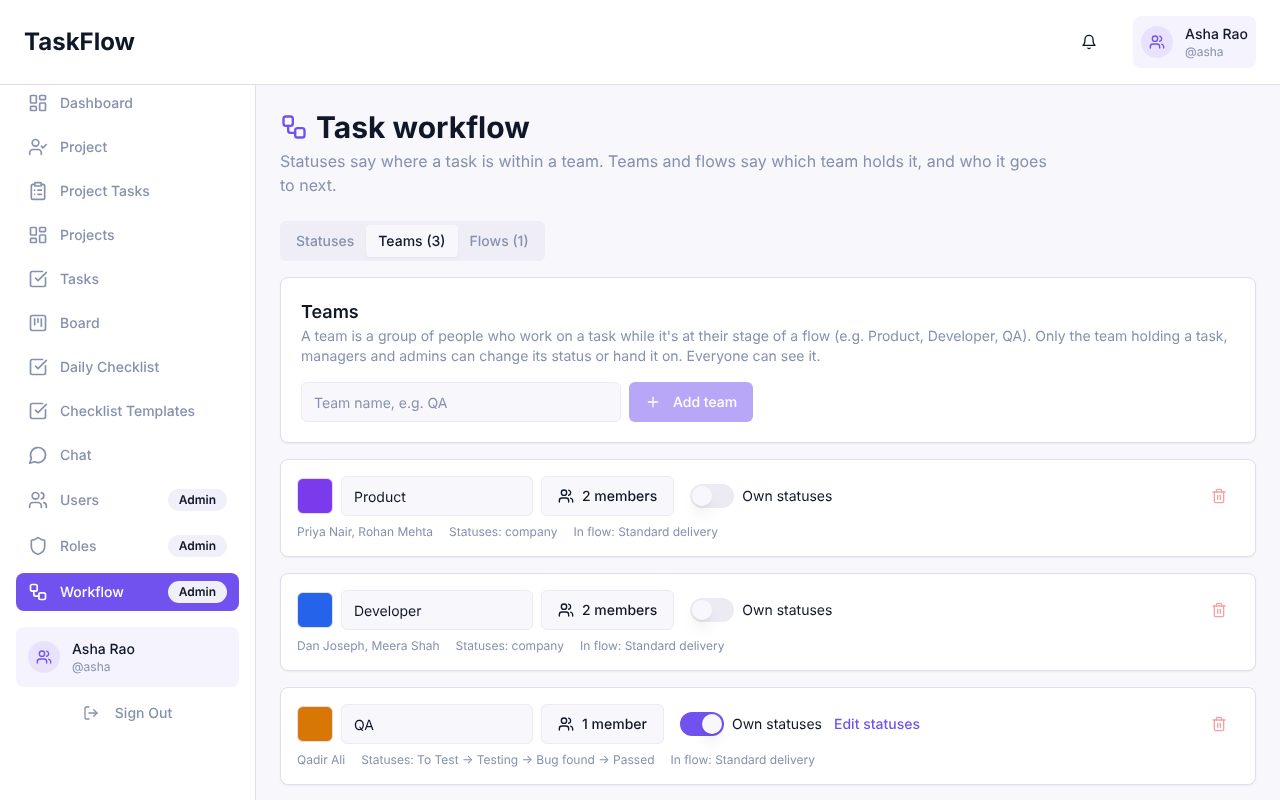
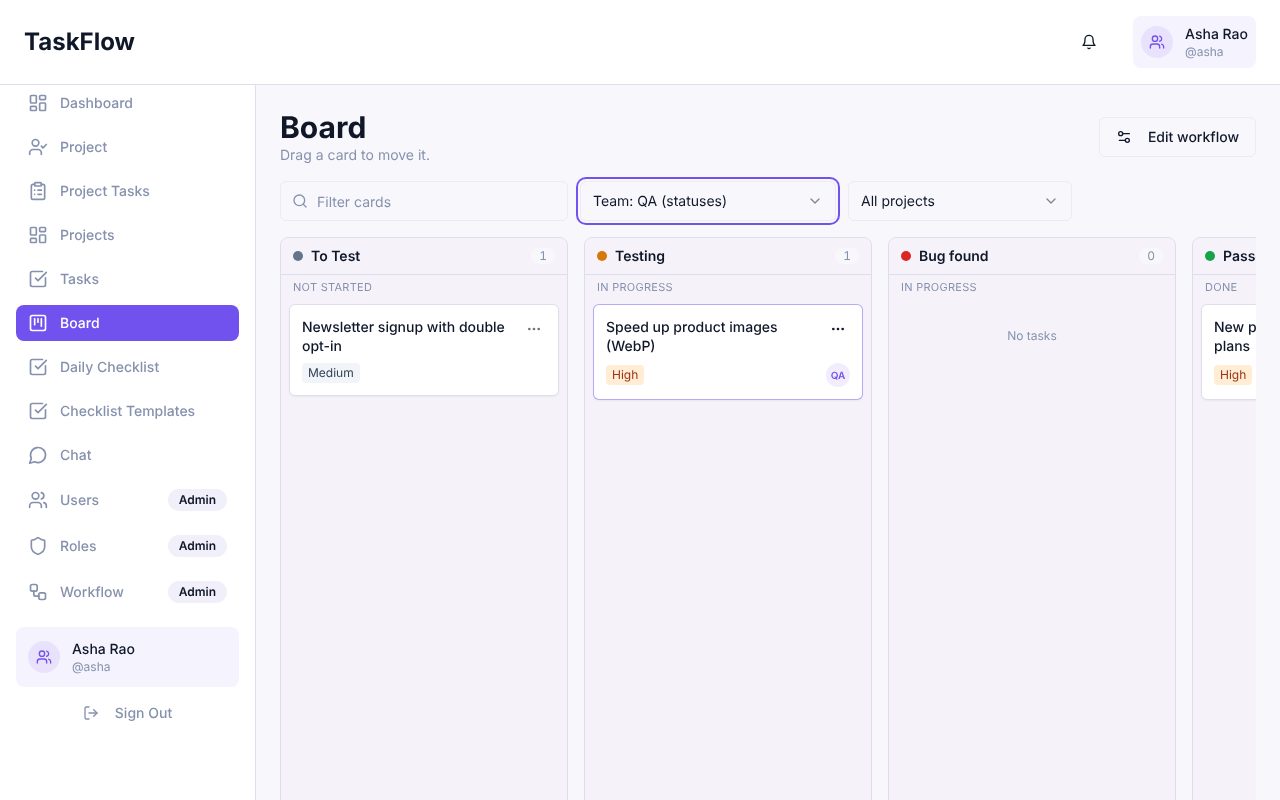
Admins open Workflow → Teams, add a team (for example Product, Developer and QA), choose a colour and tick its members. A team can use the company statuses, or switch on Own statuses to get its own list. Here QA uses To Test → Testing → Bug found → Passed while the other teams keep the shared statuses.
2. Build the flow
In Workflow → Flows, add the stages in order and pick the team for each one. The same team can appear twice, so Product can start the work and also give the final sign-off. Then tick who can hand to whom. The Next team + send back to previous button sets up the usual pattern in one click: each team passes the task forward, and can send it back to the team before it with a reason.
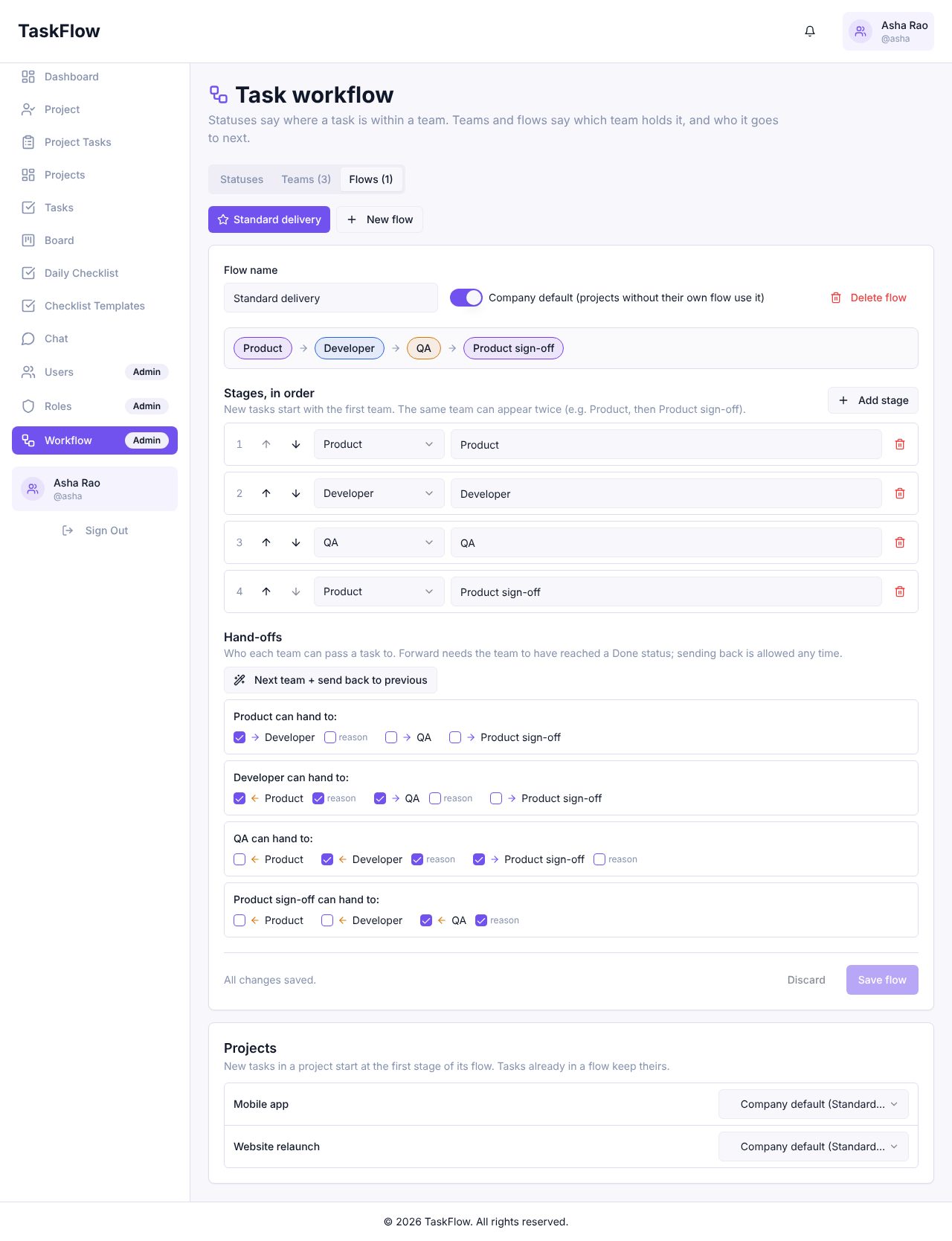
- Mark one flow as the company default. Each project can pick a different flow at the bottom of the same page.
- New tasks start with the first team of their project's flow.
- Tick reason on any hand-off to make the sender explain why, for example when QA sends a task back.
3. Work on a task and hand it off
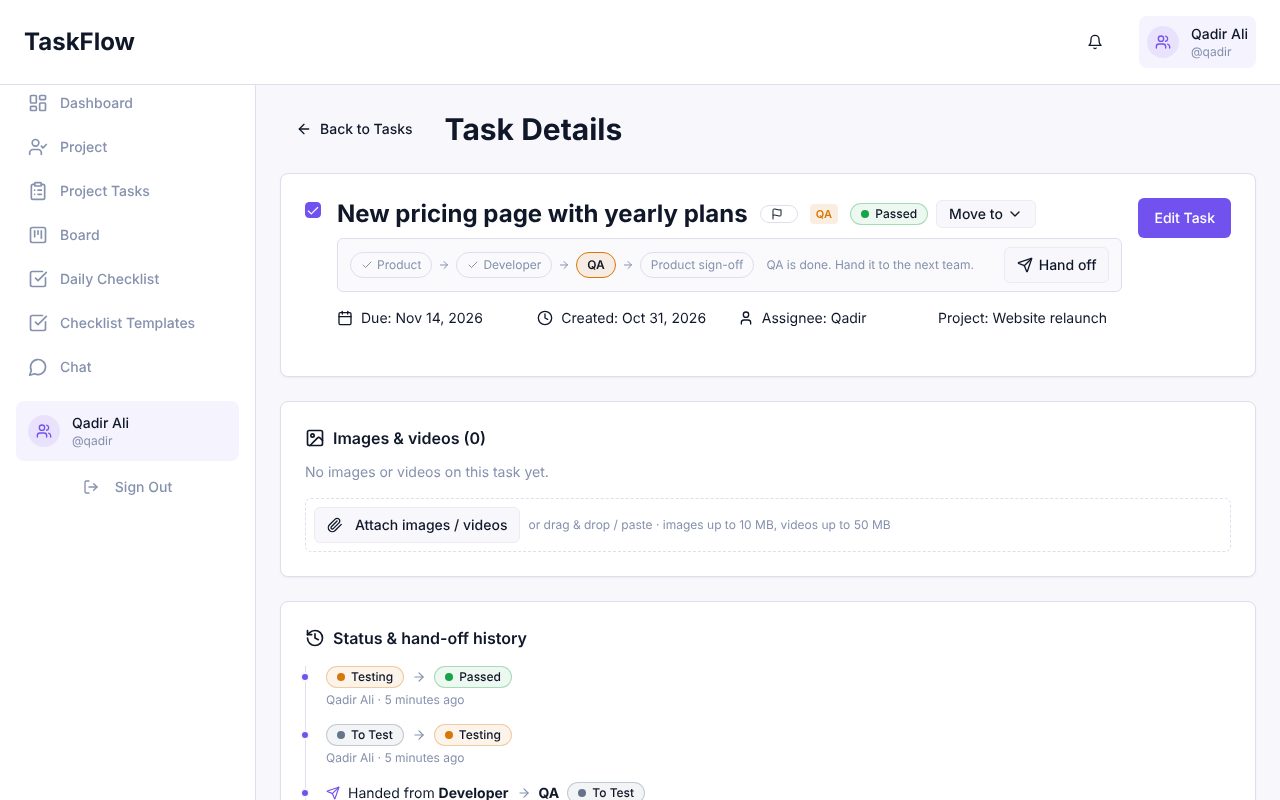
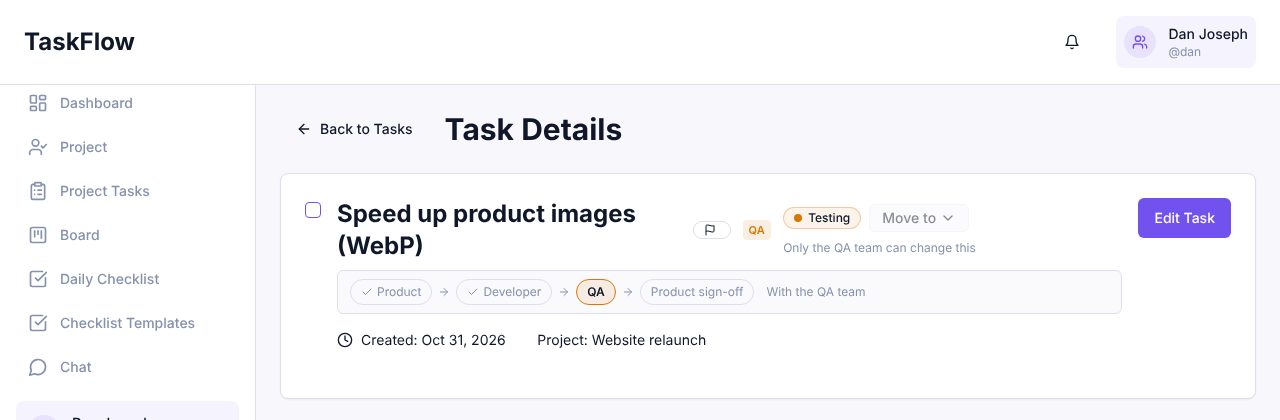
Every task in a flow shows the stages at the top, with the current team highlighted. The team holding the task moves it through its own statuses as usual. Once it reaches a Done status, the Hand off button lets the team pass it on.
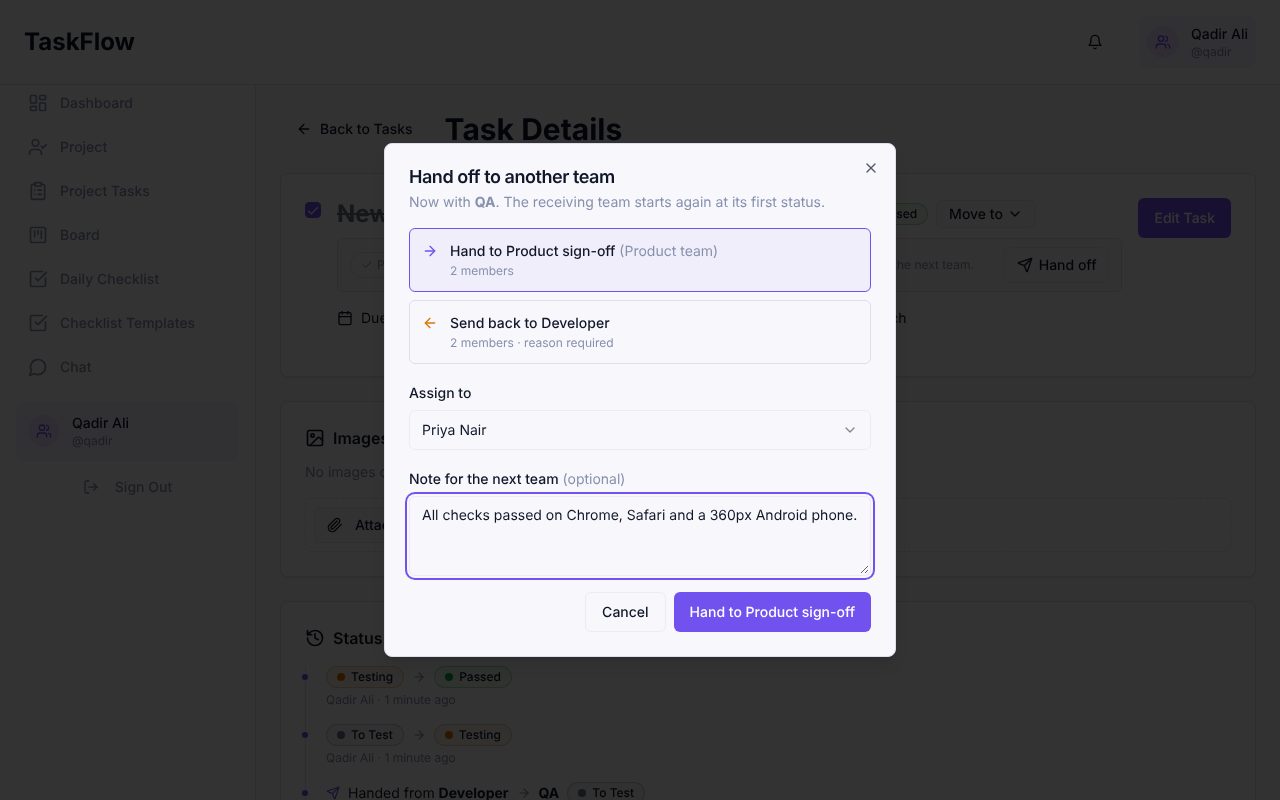
In the hand-off dialog you choose the next team, then either a person in that team or the team queue so anyone in the team can pick it up. You can add a note for the next team. The task starts again at the receiving team's first status, so QA always begins at To Test.
4. Everyone sees it, the holding team owns it
Everyone in the company can see every task. Only the members of the team holding it, managers and admins can change its status or hand it off. Other people see which team has it right now.
5. See the whole pipeline on the board
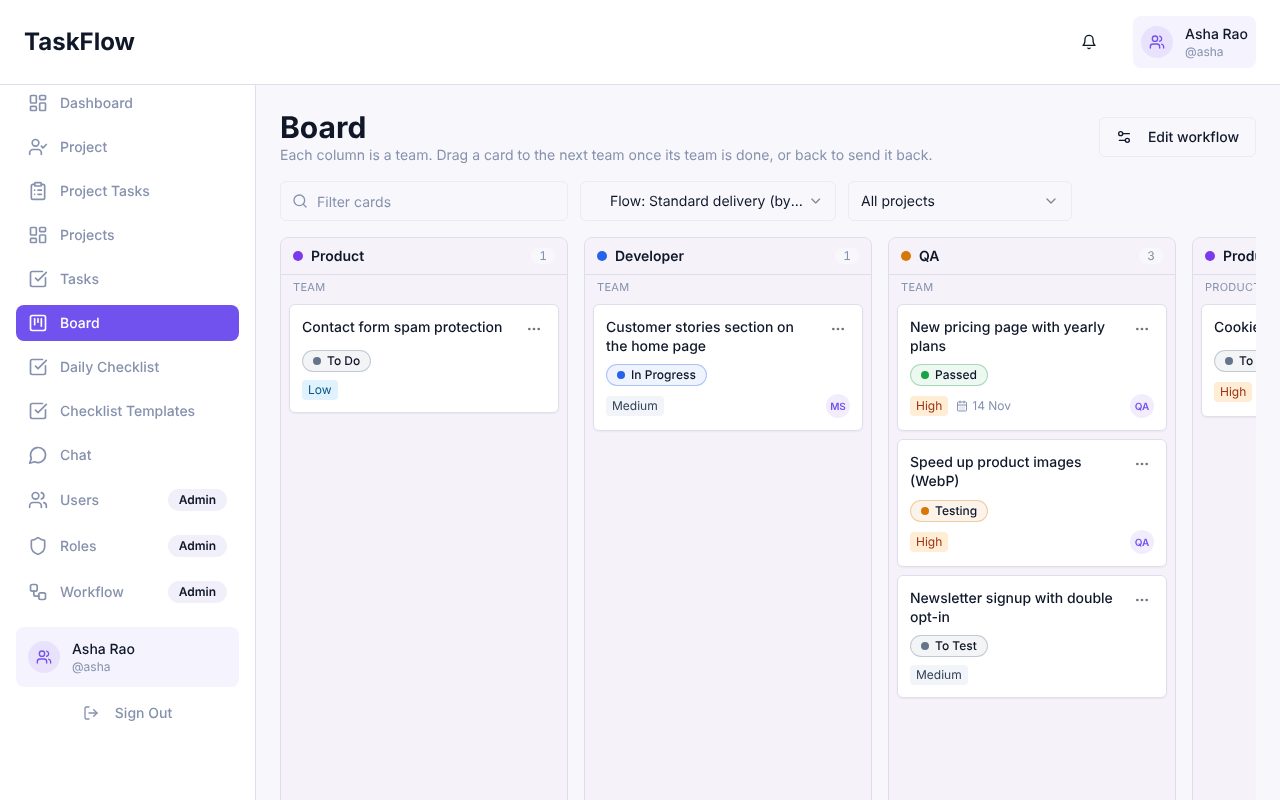
The board has a team view: one column per stage of the flow. Drag a card to the next team's column to hand it off, or back to an earlier column to send it back. You can also pick one team to see its tasks by that team's own statuses.
6. A full history of every hand-off
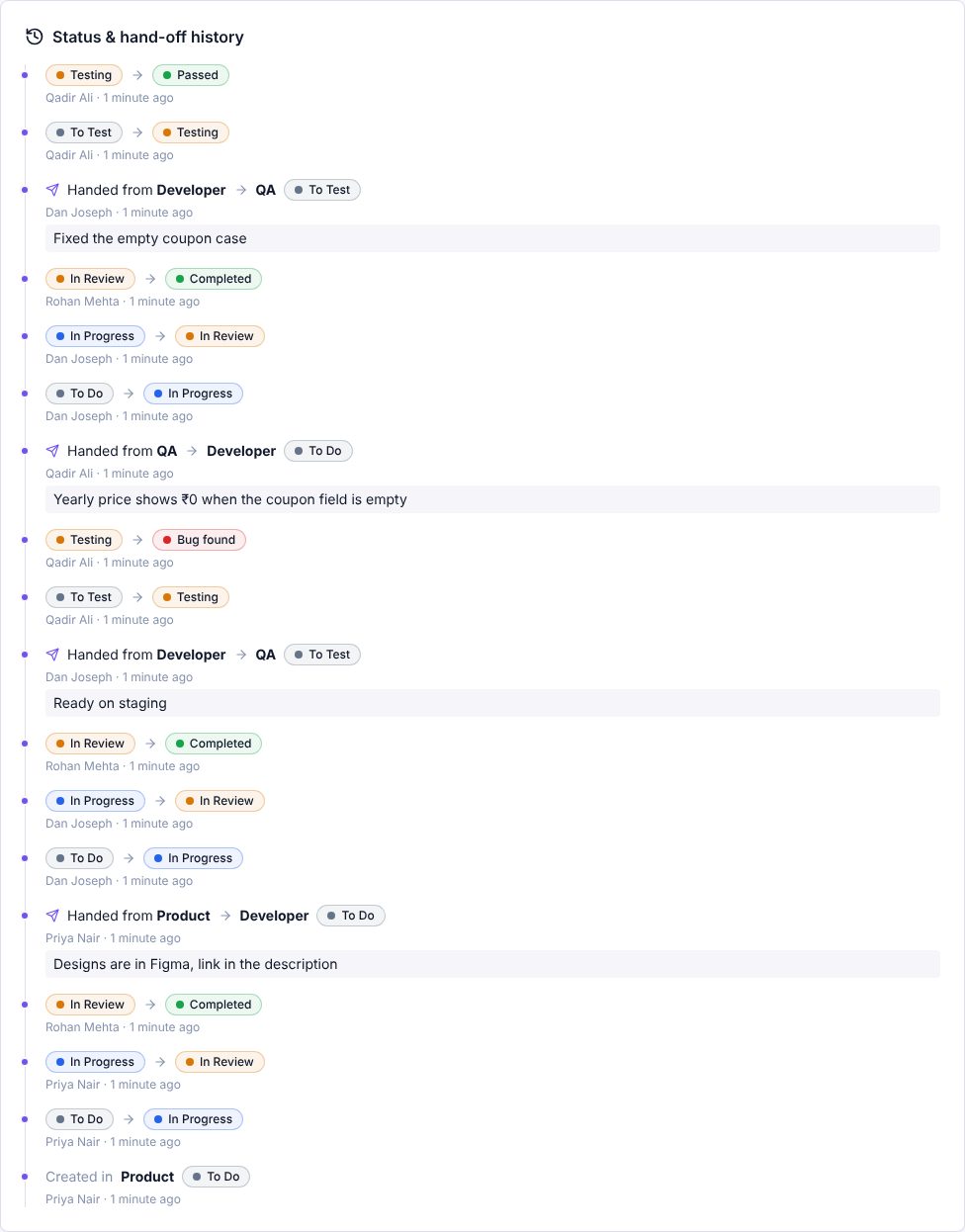
Each hand-off is recorded with who sent it, which teams it went between and the note they left. Notes are also added to the task's comments. A task counts as complete only when the last team in the flow finishes it, so progress bars and dashboards stay honest.
Try it in your company
Sign up free and set it up in a few minutes.
Get Started Free →