New feature
Your Statuses, Your Rules: Custom Task Workflow per Company
Rename statuses, add your own (Backlog, Blocked, In Review…), decide which moves are allowed and who can make them, require a reason for some moves, and drag cards on the new board.
· 5 min read · By Scriptimiz Insight LLP
Every company works a little differently. Some need a Backlog, some need In Review, others need Blocked. TaskFlow now lets each company set its own statuses and, if it wants, rules for how tasks move between them.
Set up your statuses
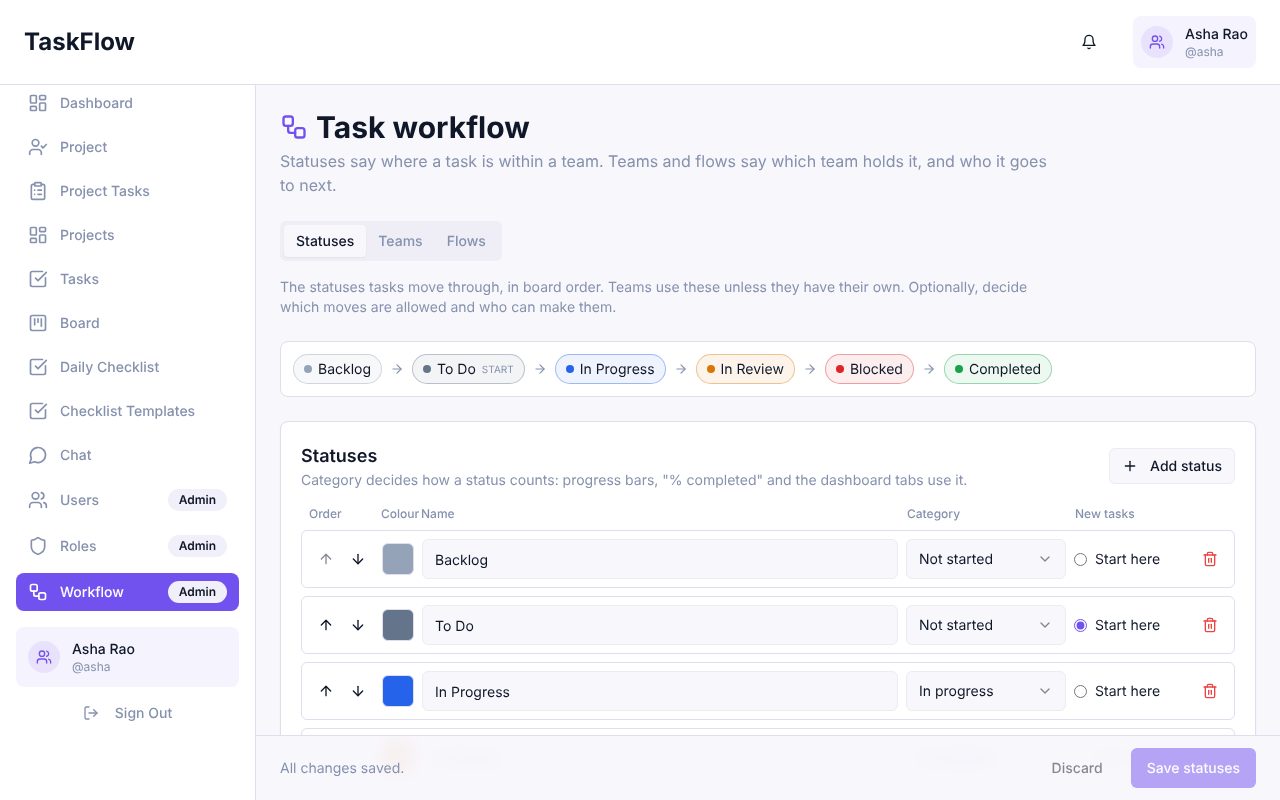
Admins open Workflow → Statuses. Add, rename, recolour and reorder statuses, and choose where new tasks start. Each status has a category: Not started, In progress or Done. Progress bars, "% completed" and the dashboard tabs use the category, so any status names work.
Decide which moves are allowed (optional)
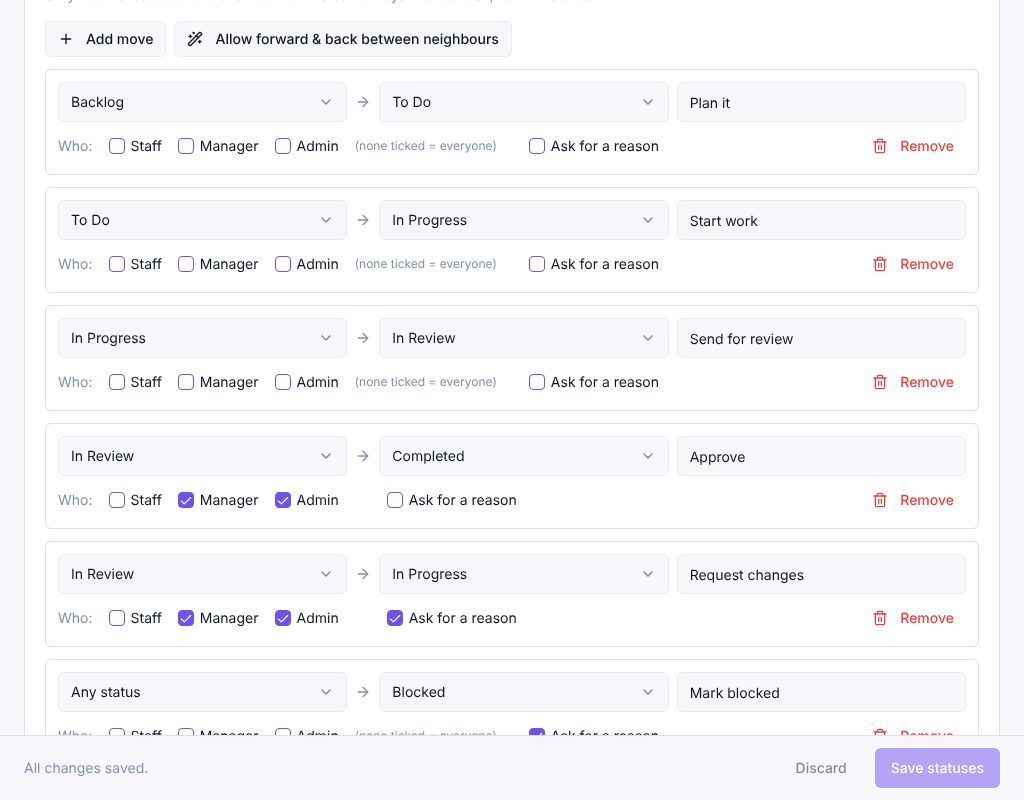
By default anyone can move a task to any status. Switch on Only allow these moves to control it. Each allowed move can have a button name (for example Send for review), can be limited to Staff, Managers or Admins, and can ask for a reason. Admins can always move a task, to fix mistakes.
Drag tasks on the board
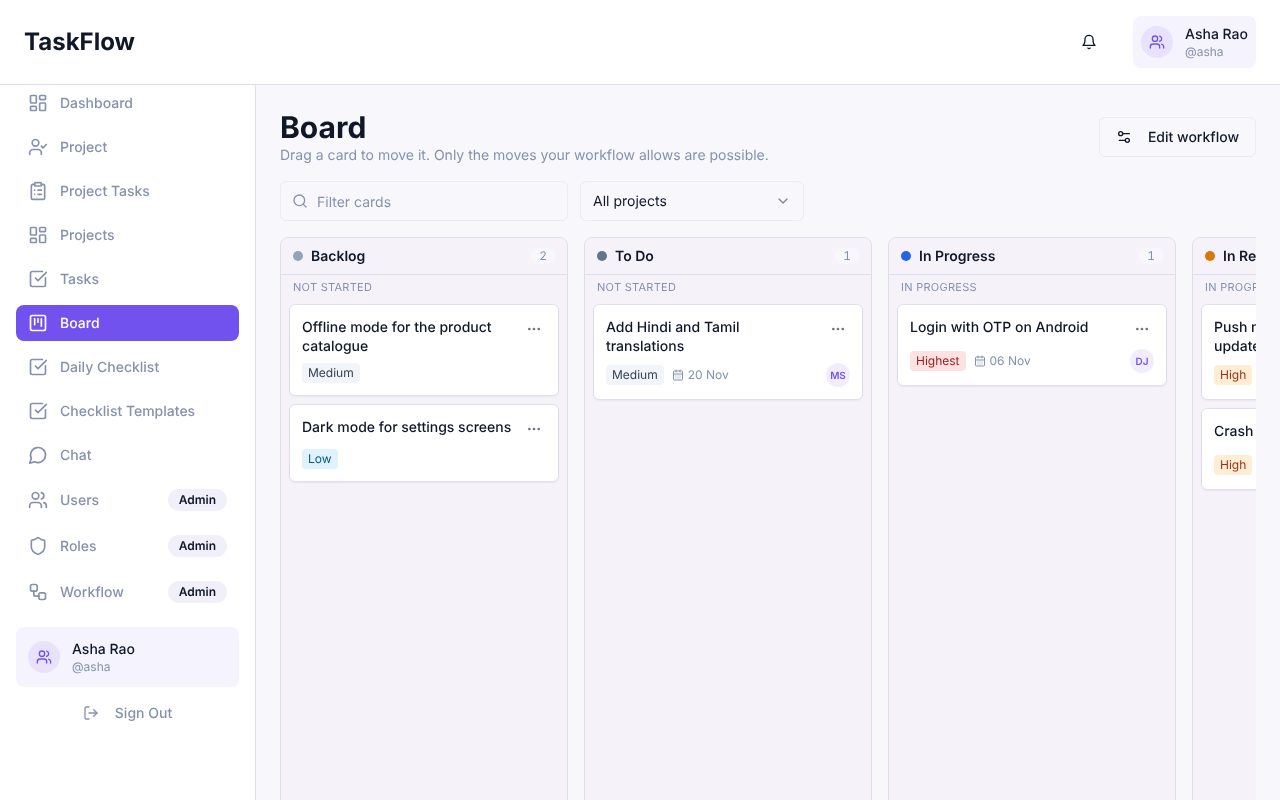
The new Board shows one column per status. Drag a card to move it; only the columns your workflow allows accept it. On touch screens or with a keyboard, use the ⋯ menu on the card.
Move a task from its page
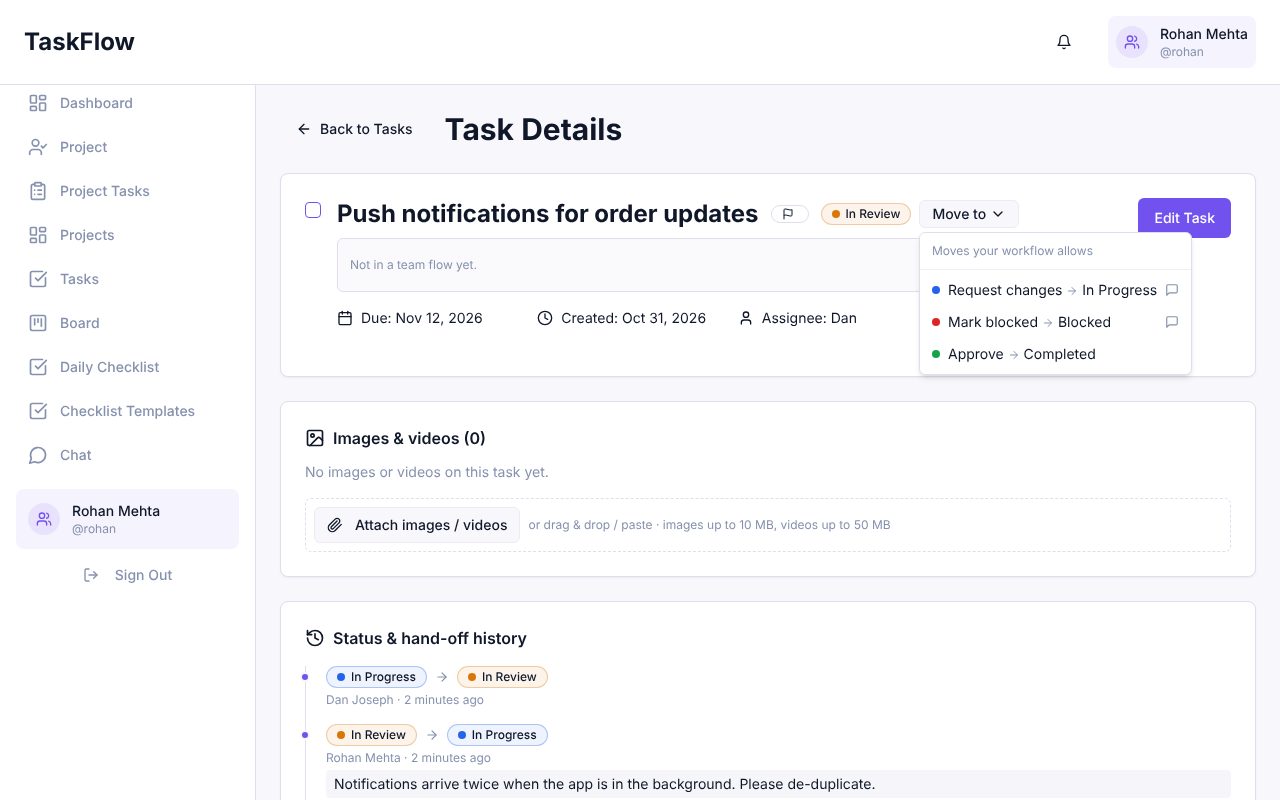
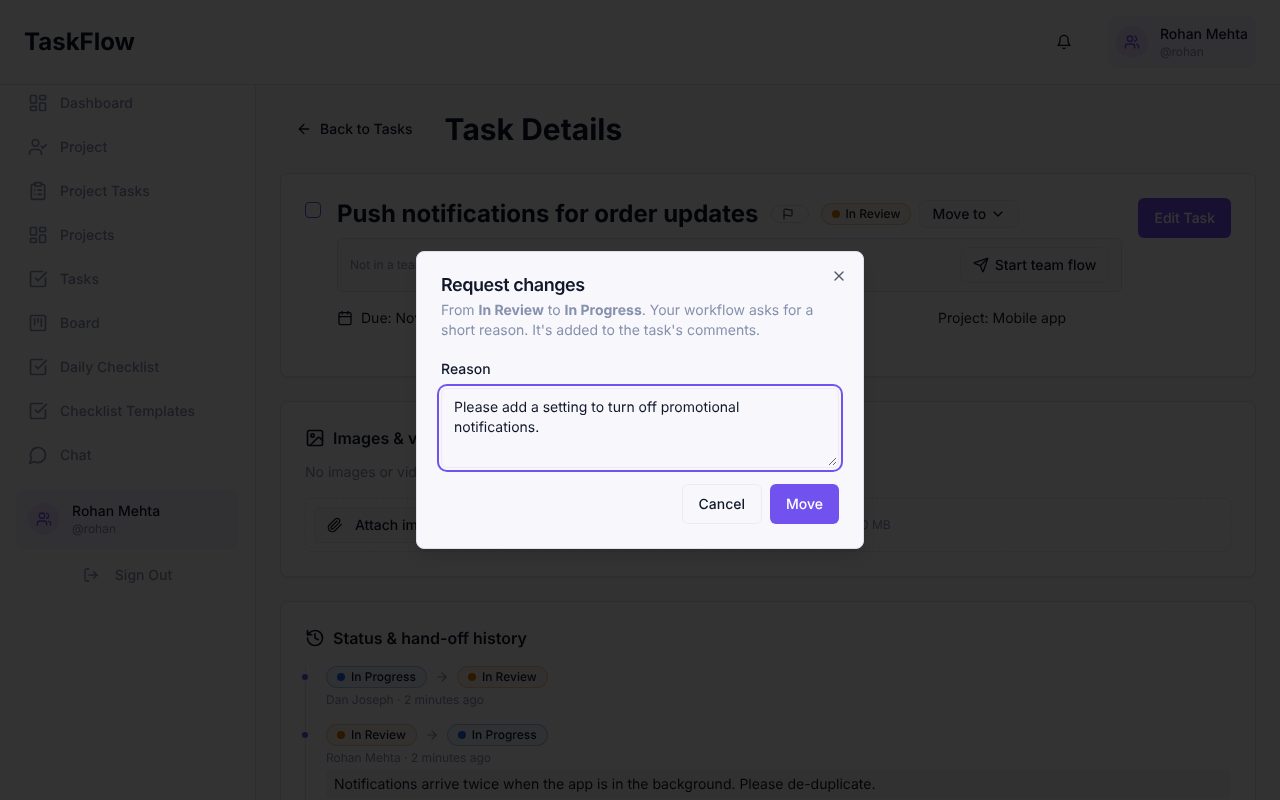
On the task page, Move to lists only the moves you are allowed to make, using the names you gave them. When a move needs a reason, TaskFlow asks for it, and the reason is added to the task's comments so the assignee sees it.
Status history on every task
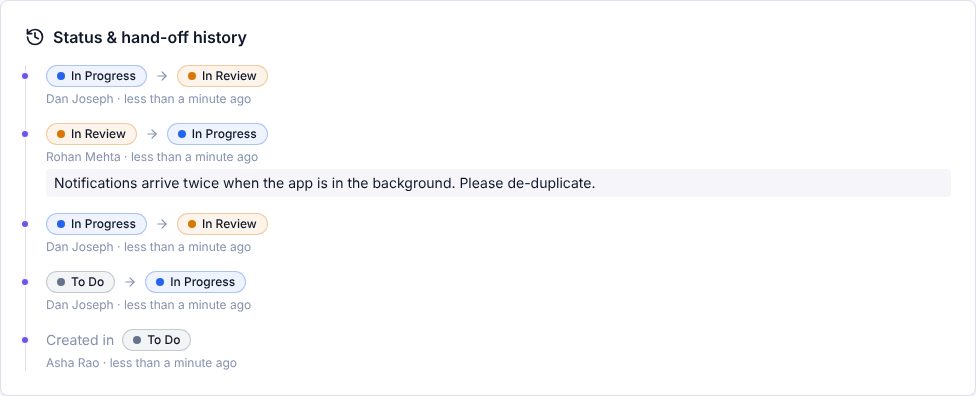
Every move is recorded: who moved the task, from where to where, when, and why.
Try it in your company
Sign up free and set it up in a few minutes.
Get Started Free →