New feature
Explain With Pictures: Images Inside Descriptions and Comments
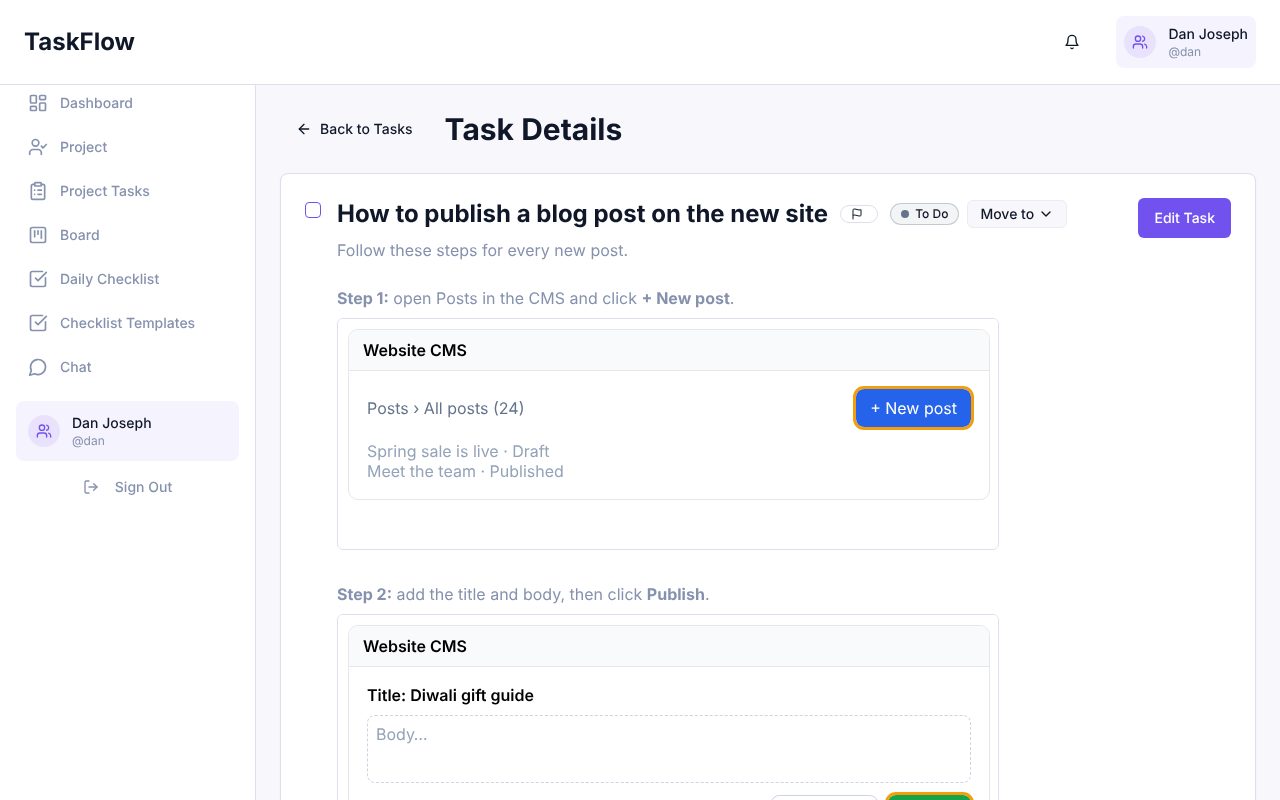
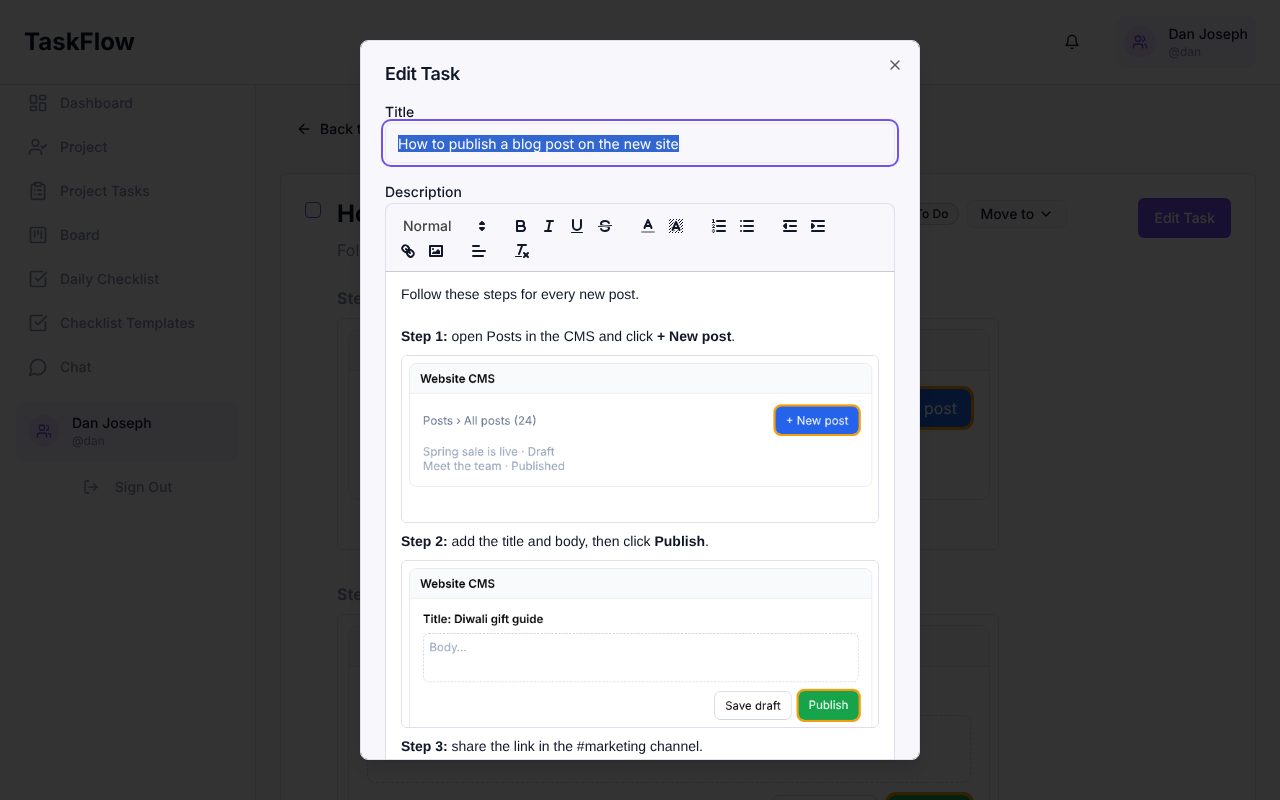
Write step-by-step instructions with a screenshot under each step, just like GitLab or Jira. Paste, drag or insert images right where the cursor is, in descriptions and comments.
· 3 min read · By Scriptimiz Insight LLP
Some things are much easier to show than to describe. You can now put images inside the text of task descriptions, project descriptions and comments, exactly where they belong: Step 1, then its screenshot, then Step 2, and so on.
Three ways to add an image
- Click the image button in the editor toolbar and choose a file.
- Paste a screenshot straight from the clipboard (Ctrl/Cmd + V).
- Drag an image file from your computer into the text.
The image is placed where your cursor is, not at the top or bottom. You can keep typing around it, move it, or delete it like any other part of the text.
Try it in your company
Sign up free and set it up in a few minutes.
Get Started Free →